 SelectSight
Automatic document structure
Your images never leave your device. OCR runs locally in your browser; the recognized text and coordinates are sent through our server to AI for document structuring.
Image to Word conversion: images stay on your device; AI organizes the recognized text.
Drop your image here
Click to browse, or paste with Ctrl+V
JPG, PNG, WebP or BMP · One image at a timeDrag over image text to copy it and open the toolbar.
Check the text against the original before downloading.
Your images never leave your device. OCR runs locally in your browser; the recognized text and coordinates are sent through our server to AI for document structuring.
Without signing in, Word, Excel and image translation share 3 free conversions per IP per day (reset at 00:00 UTC). First verified sign-in grants 5 credits once, shared with the extension. Each website conversion costs 1 credit. Failed conversions do not count; editing and downloading again are free.
20 recognition languages. Opening a tool prepares your browser language and English. Choosing a page language selects that OCR language for this tab, including after refresh or opening another tool. Cached models are reused.
Correct text and cells before downloading.
Choose a JPG, PNG, screenshot or photo. Your image stays on your device.
Local OCR reads the text, then AI organizes it. Review and edit the document.
Download a DOCX file with editable paragraphs, headings and real tables.
Check the text against the original before downloading.
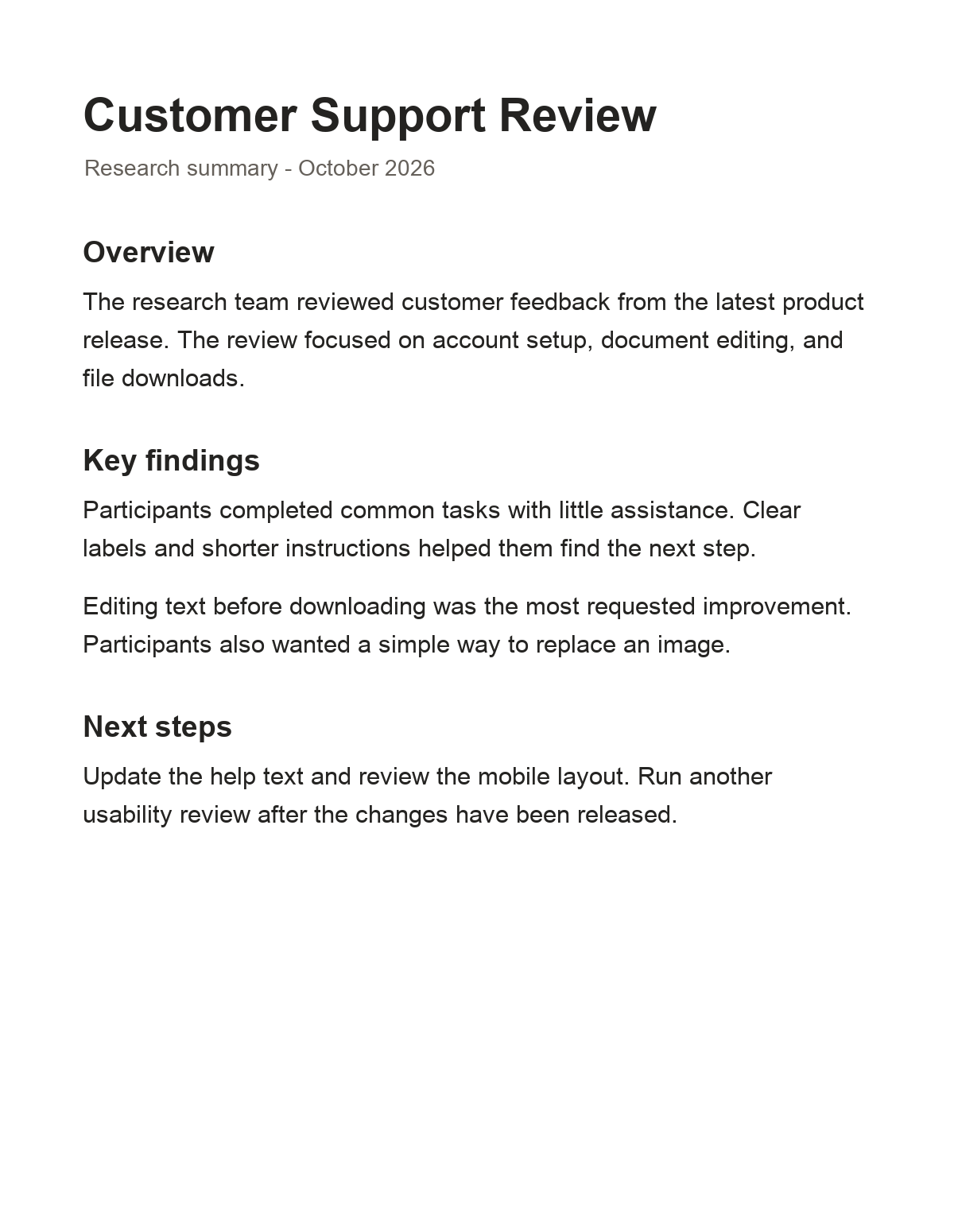
Research summary - October 2026
The research team reviewed customer feedback from the latest product release. The review focused on account setup, document editing, and file downloads.
Participants completed common tasks with little assistance. Clear labels and shorter instructions helped them find the next step.
Editing text before downloading was the most requested improvement. Participants also wanted a simple way to replace an image.
Update the help text and review the mobile layout. Run another usability review after the changes have been released.
Correct text and cells before downloading.
This example contains a title, section headings and paragraphs you can edit before exporting. English demonstration documents, not customer files. Results vary with image quality. Review the output before export.
Turn a lecture slide or handout screenshot into editable notes. Review technical terms and reading order before downloading.
Use screenshot to Word conversion to reuse article paragraphs. Check headings, punctuation and any text clipped at the edge of the picture.
Start with a straight-on photo of clear lettering. Handwriting and diagrams may need manual transcription or correction.
Convert a photo of a printed document into editable paragraphs and tables. Check names, dates and clauses against the original before using the DOCX.
This image to Word converter creates editable paragraphs, headings and detected tables from pictures. JPG to Word is useful for photographed paper documents, while PNG to Word helps recover text from clear digital captures. Check the recognized text before downloading.
Use screenshot to Word conversion for lecture slides, handouts and article excerpts. For picture to Word conversion, keep the page straight and include the full text area. Clear printed text works best; handwriting and complex layouts may need manual correction.
The image to Word result contains editable text and real table objects rather than a page saved as a single picture. Review reading order, names, dates and paragraph spacing. The DOCX is a reconstructed document, not an exact copy of every font, margin or page break.
Without signing in, Word, Excel and image translation share 3 free conversions per IP per day (reset at 00:00 UTC). First verified sign-in grants 5 credits once, shared with the extension. Each website conversion costs 1 credit. Failed conversions do not count; editing and downloading again are free.
Your images never leave your device. OCR runs locally in your browser; the recognized text and coordinates are sent through our server to AI for document structuring.
20 recognition languages. Opening a tool prepares your browser language and English. Choosing a page language selects that OCR language for this tab, including after refresh or opening another tool. Cached models are reused.
The DOCX contains editable paragraphs, headings and real table objects where detected. Complex tables, handwriting and exact page formatting may need manual correction; the file is not a pixel-perfect copy.
Yes, in browsers supporting WebAssembly and OffscreenCanvas. Tap to choose an image. Speed depends on your device and image size.